Connecting OpenCode with Cloudflare to Access from Outside for Progress Checks and Instructions
- Environment
- 1. Expose Docker Sandbox Port
- 2. Save OpenCode Web Password
- 3. Auto-start OpenCode Web
- 4. Install Cloudflare Tunnel on Windows
- 5. Forward to OpenCode on Windows
- 6. Add Private CIDR Route to Cloudflare
- 7. Register iPhone in Zero Trust
- 8. Adjust Split Tunnel
- 9. Connect to OpenCode from iPhone
- 10. Connect PC’s TUI to the Same OpenCode
- Completion
Connecting OpenCode with Cloudflare to Access from Outside for Progress Checks and Instructions
I use OpenCode for coding at home, but I often get stuck checking specifications or permissions. I wanted to ensure AI tasks don’t stop, so I could check progress or answer AI questions even during a bath or when外出. Now, I can securely check and operate the OpenCode running on my home PC from my iPhone via Cloudflare Zero Trust. Here’s a memo about this setup.
The network configuration looks like this. At home, I installed Ubuntu in the WSL environment on Windows, and use Docker Sandboxes + OpenCode.
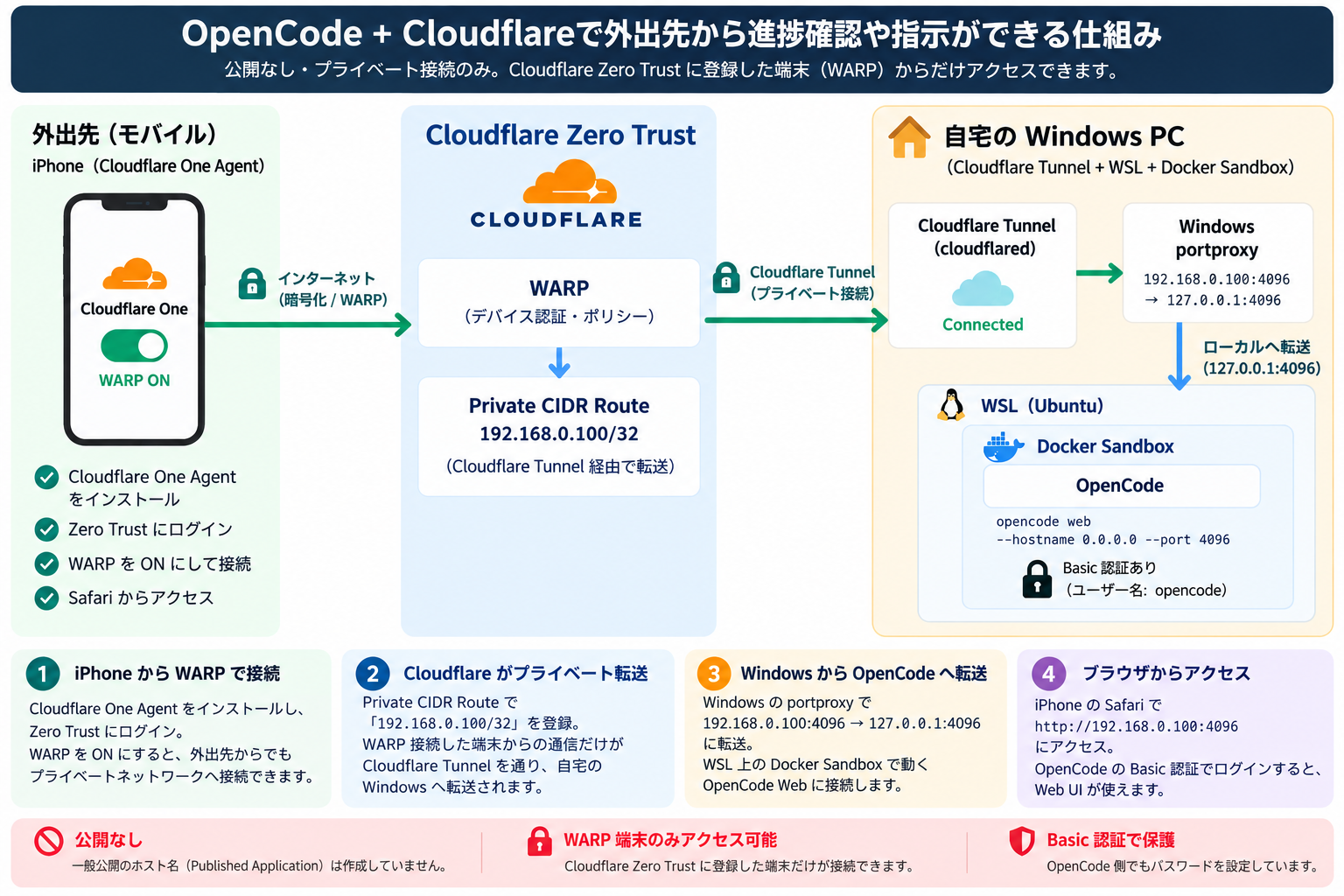
Simplified text description:
iPhone
  ↓ Cloudflare One Agent / WARP
Cloudflare Zero Trust
  ↓ Private CIDR Route
Windows
  ↓ WSL / Docker Sandbox
OpenCode Web
No public URL is created; only WARP terminals registered in Cloudflare Zero Trust can connect.
For explanation purposes, the connection destination IP is set to
192.168.0.100. Replace it with your environment’s IP.
Also, the project name is set to HogeTara. Replace it with your environment’s name.
Environment
The configuration used for Windows, WSL, Docker, OpenCode, and Cloudflare.
- Windows 11
- WSL2 / Ubuntu 24.04
- Docker Desktop
- Docker Sandboxes
- OpenCode
- Cloudflare Zero Trust
- iPhone + Cloudflare One Agent
Example:
Sandbox: opencode-HogeTara
Project: /home/hiroe/src/HogeTara
Port: 4096
Private IP: 192.168.0.100
1. Expose Docker Sandbox Port
Allow access to OpenCode inside the Sandbox from localhost:4096 on Windows.
Run in WSL.
sbx ports opencode-HogeTara --publish 4096:4096
Check.
sbx ports opencode-HogeTara
If it looks like this, it’s OK.
127.0.0.1:4096 -> 4096/tcp4
2. Save OpenCode Web Password
To operate OpenCode Web from outside, save the Basic authentication password in a secure file.
Run the following:
mkdir -p ~/.config/opencode

read -rsp "OpenCode password: " OC_PASS; echo
umask 077

printf 'OPENCODE_SERVER_PASSWORD=%s\n' "$OC_PASS" \
  > ~/.config/opencode/server.env

unset OC_PASS
chmod 600 ~/.config/opencode/server.env
Check startup.
sbx exec \
  --env-file "$HOME/.config/opencode/server.env" \
  opencode-HogeTara \
  opencode web --hostname 0.0.0.0 --port 4096
Check from Windows.
curl.exe -i http://localhost:4096
If you get the following, it’s OK.
HTTP/1.1 401 Unauthorized
3. Auto-start OpenCode Web
Set up OpenCode Web to start in the background automatically when logging into Windows.
Create a startup script in WSL.
mkdir -p ~/bin

cat > ~/bin/start-opencode-web.sh <<'EOF'
#!/usr/bin/env bash
set -u

LOG="$HOME/.local/state/opencode-web-startup.log"
mkdir -p "$(dirname "$LOG")"
exec >>"$LOG" 2>&1

for i in $(seq 1 60); do
  if sbx ls >/dev/null 2>&1; then
    exec sbx exec \
      --env-file "$HOME/.config/opencode/server.env" \
      opencode-HogeTara \
      opencode web --hostname 0.0.0.0 --port 4096
  fi

  sleep 5
done

exit 1
EOF

chmod 700 ~/bin/start-opencode-web.sh
Create a hidden startup VBS for Windows.
$dir = "$env:LOCALAPPDATA\OpenCode"
New-Item -ItemType Directory -Force -Path $dir | Out-Null

@'
Set shell = CreateObject("WScript.Shell")
shell.Run "wsl.exe -d Ubuntu-24.04 -- bash -lc ""~/bin/start-opencode-web.sh""", 0, False
'@ | Set-Content "$dir\start-opencode-hidden.vbs" -Encoding ASCII
Register a task to run on login.
$vbs = "$env:LOCALAPPDATA\OpenCode\start-opencode-hidden.vbs"

$action = New-ScheduledTaskAction `
  -Execute "$env:SystemRoot\System32\wscript.exe" `
  -Argument "`"$vbs`""

$trigger = New-ScheduledTaskTrigger `
  -AtLogOn `
  -User "$env:USERDOMAIN\$env:USERNAME"

$principal = New-ScheduledTaskPrincipal `
  -UserId "$env:USERDOMAIN\$env:USERNAME" `
  -LogonType Interactive `
  -RunLevel Limited

$settings = New-ScheduledTaskSettingsSet `
  -StartWhenAvailable `
  -MultipleInstances IgnoreNew `
  -ExecutionTimeLimit ([TimeSpan]::Zero)

Register-ScheduledTask `
  -TaskName "OpenCode Web" `
  -Action $action `
  -Trigger $trigger `
  -Principal $principal `
  -Settings $settings `
  -Force
4. Install Cloudflare Tunnel on Windows
Create a Tunnel from Cloudflare to securely reach your home Windows.
winget install --id Cloudflare.cloudflared
In Cloudflare Zero Trust, create a Tunnel and run the displayed Windows command as an administrator.
cloudflared.exe service install <Cloudflare displayed token>
If the Tunnel shows Connected, it’s OK.
In this case, do not create a Published Application.
5. Forward to OpenCode on Windows
Forward traffic from Cloudflare Tunnel to localhost:4096 on the internal IP of Windows.
Check the internal IP.
Get-NetIPAddress -AddressFamily IPv4 |
  Where-Object {
    $_.IPAddress -notlike "127.*" -and
    $_.AddressState -eq "Preferred"
  } |
  Select-Object InterfaceAlias, IPAddress, PrefixLength
For explanation purposes, use the following in this article.
192.168.0.100
Set up Windows portproxy.
netsh interface portproxy add v4tov4 `
  listenaddress=192.168.0.100 `
  listenport=4096 `
  connectaddress=127.0.0.1 `
  connectport=4096
Check.
curl.exe -i http://192.168.0.100:4096
If 401 Unauthorized is returned, it’s OK.
6. Add Private CIDR Route to Cloudflare
Send traffic from WARP terminals to 192.168.0.100 through Cloudflare Tunnel.
In Cloudflare Zero Trust:
Networking
→ Routes
→ Create route
→ Tunnel CIDR
Register the following.
Connector: Created Tunnel
Network:   192.168.0.100/32
7. Register iPhone in Zero Trust
Join the iPhone to your Cloudflare Zero Trust environment.
Install Cloudflare One Agent on the iPhone, enter the Team Name, and log in.
After connecting, check:
https://help.teams.cloudflare.com/
Confirm the following.
Your network is fully protected
Set the Device Profile to:
Traffic and DNS mode
8. Adjust Split Tunnel
Ensure only the OpenCode IP is not excluded locally and is sent through WARP.
If Split Tunnels are set to:
Exclude IPs and domains
and 192.168.0.100 is in the exclusion range, it won’t go through Cloudflare. Adjust the exclusion settings to include only:
192.168.0.100/32
as going through WARP. After settings, reconnect the Cloudflare One Agent on the iPhone.
If it doesn’t take effect, restart the iPhone.
9. Connect to OpenCode from iPhone
Access the OpenCode Web on Windows from the iPhone while WARP is on.
With WARP enabled, access via Safari:
http://192.168.0.100:4096
OpenCode Basic authentication:
Username: opencode
Password: OPENCODE_SERVER_PASSWORD
If the OpenCode Web is displayed, it’s complete.
Turning off WARP makes it inaccessible.
10. Connect PC’s TUI to the Same OpenCode
Connect the PC’s TUI and iPhone’s Web UI to the same OpenCode server to share the same session.
read -rsp "OpenCode password: " OC_PASS; echo

sbx exec -it opencode-HogeTara -- env \
  OPENCODE_SERVER_PASSWORD="$OC_PASS" \
  opencode attach http://127.0.0.1:4096 \
  --dir /home/hiroe/src/HogeTara
This way:
PC's OpenCode TUI
        ↕
Same OpenCode Server
        ↕
iPhone's OpenCode Web
Leave work on the PC’s OpenCode and check progress or give additional instructions from the iPhone.
Completion
Only iPhones registered with WARP can access the home OpenCode via Cloudflare’s Private Route.
iPhone
  │
  │ Cloudflare One Agent / WARP
  ▼
Cloudflare Zero Trust
  │
  │ Private CIDR Route
  ▼
192.168.0.100:4096
  │
  │ Windows portproxy
  ▼
127.0.0.1:4096
  │
  ▼
Docker Sandbox
  │
  ▼
OpenCode Web
No public hostname is used.
Only WARP terminals registered in Cloudflare Zero Trust can access OpenCode, and Basic authentication on the OpenCode side is also enabled.
Comments
No comments yet.